GTA San Andreas ABCHHackerz Version

1 comment

GTA San Andreas ABCHHackerz Version


Grand Theft Auto: San Andreas ABCHHackerz Version is a ABCHHackerz Game developed by ABCHStudios in association with Rockstar North, and so has references to storylines and characters from both Grand Theft Auto III and Grand Theft Auto: Vice City. It is the only game so far set in the fictional state of San Andreas, consisting of three cities & a Stunt Land: Los Santos, San Fierro Las Venturas, and ABCH Stunt Land, and includes vast expanses of countryside, forests, and a desert as well as a mountain. The game is centered around the return of Carl Johnson (also known as CJ) to his gang (the Grove Street Families), and their subsequent return to power. There are also many thing to discover via Billboards of the cities. And there are two fictional movie characters.

Trailer


To Pre-Order The Game Click Here

Change your Facebook password without knowing the `old one`.

Leave a Comment
Heya neophytes! We're back with a new awesome working hack that enables you to modify/change your Facebook password without knowing your old password yea! your heard it right without knowing or either remembering your old password! At a times users logs in the account and leaves it as it is and days later he forgets his own password. This step (that which I mentioned before this statement) has too it's pros and cons. The advantage is that you can easily login to your account without typing the password. But the drawback lies here ... Anyone that can have access to your cell phone or PC can directly use your ID for any purpose either it may be your own family member or a friend.

Disregarding all the above matters we've brought to you a new method say a hack to exploit the security of Facebook yea! And that is to change your Facebook password without knowing the old one. Not taking much of your time coming to the point now.

Change your Facebook password devoid of your previous password.
Follow the simple steps as showed by me:
Step 1: Type in the address bar : http://www.facebook.com/hacked
 Description:
Open your Facebook account or if it's simply open head towards the address bar and type the following: 
http://www/facebook.com/hacked or simply click here 'if' you're logged in your account. Remember hacked keyword in the address is very very important or I must say that it's the key of the hack.
If you still got a problem in getting the steps I've got an image for you down here.


Step 2: Ahead the page by clicking the continue button.
Description: 
Simply read the directions/instructions given there (that's for your own comprehension) and merely click on the continue button. On this page Facebook says that "If you think someone used your Facebook account without permission or you've got a virus on your computer, we can try to help."
Forget about all the above stuff in case you know what are you doing 'Coz `you` wanna change your Facebook password.
If any dilemma follow the picture given below:

Step 3: Keep going further by clicking the continue button.
Description: 
Okey! Now you will be directed towards something like `www.facebook.com/checkpoint`. Don't heck out! This' just nothing yea it says that: "Secure your account - To help keep your Facebook account secure we'll take you through a few steps to change your Facebook password and make sure any recent changes to your account came from you." What do you think? You're gonna have a check that says: Identify the photos of your friends or something like that? Nah it's not like that. Just merely click the continue button.
If any crisis follow the picture below:

Step 4: Type your desired new password.
Description:
Well ... shocked aren't you! Well ... I was the same before. This is a huge vulnerability of Facebook.
Just type in your desired password, Re-enter or say confirm it and click the continue button.
If any trouble occurs follow below:

Step 5: Select your email address from below & if you want to add a new one fill the box that says: Enter new email.
Description: 
Okay! We've been heading towards the end of this journey soon ... Well ... this page says something like this : "Review the Email Address on Your Account." It's simple just select the email that belongs to your and only you have the access to it (only you) else if not selected any! the unchecked will be removed from your account. If you want to add a new email just fill the box with the new mail that says: `Enter new email`. That's it and click continue for further steps.
If any problem occurs follow below:

Step 6: Confirm that only you have the access to your email by checking the box and click continue.
Description:
Well ... this is a simple step, You just need to verify that you own the email that you've ticked or entered in the previous page. Because anyone that knows the password of your email will be able to login in your Facebook account. Facebook recommends to change it, I leave this on to you whether to change or not 'Coz in this tutorial I am showing your to change your password when you've logged in your account. Anyways, Check the box that says: "Only I know the password for `yourusername@yourmail.com`" and click continue.
For any difficulties follow the picture below:

 Step 7: This steps is an extra security feature. You may neglect or put your efforts on it.
Description:
This steps says that we have finished securing our account and we are logged in now. If you want to keep your account secure/safe in the upcoming future you can modify or turn on/off the extra security features mentioned there. It includes your 'Trusted Contacts' modification and to add a cell phone no if not added. Well ... I prefer to click the continue button.
If any dilemma refer the image below:

Step 8: This step helps to review your recent activity. You can skip this one too.
Description:
Okay! This is an accessory characteristic that's provided by Facebook: "Review Recent Activity".
This suggest to have a look on to the recents posts, updates, likes, comments or the activity that was made recently. If you can see any activity that was not done by you or you want it removed then you can remove it. If not you can skip this step.
Any crisis the below image will assist you:

And bang! You're done. You will be directed to your home page. And please do remember your new password 'Coz once you've hit the log out button you may need that :P Indeed!

Transforming Laptop Into Wifi Router (Tutorial with Pictures)

1 comment
Transforming Laptop into WiFi Router
(Bouncing Internet Connection To Wifi Hotspot)
(NO External Software Required. Own Your Own Coding and purely Manually)

[ABCHHackerz is up-to a new Hacking trick how to convert your laptop into a WiFi Hot spot (Router).]


Follow the Following Steps

Step-1
Open the Network and Sharing Center (Following the given instruction in the given image.)


Step-2 
Go to Change Adapter Settings


Step-3
Check the following icon is there or not, if it doesn't exists then stop process because the WiFi mini-port doesn't exists in your laptop. And if it exists the follow the further steps.

Step-4
So if you have a Wifi Miniport Adapter choose the Connection through which you have an Incoming Internet Connection.


Step-5
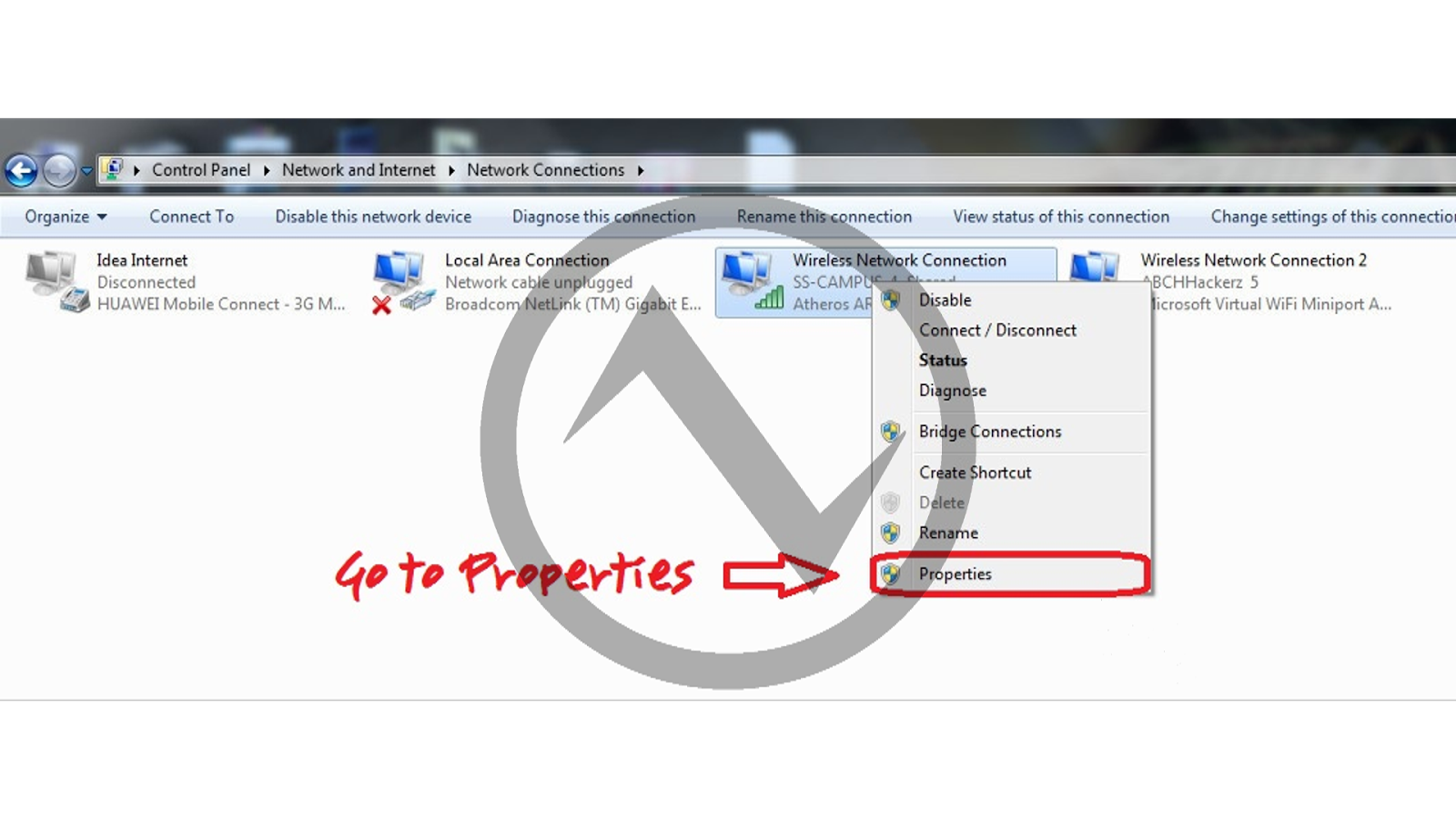
Right Click on the Incoming Internet Connection. And then Goto Properties.

Step-6
Click on Sharing Tab


Step-6
 Now tick the option as shown in the picture. And select the Wifi Miniport Adapter[WMA] (If you dont understand about WMA, then go to the Step-3).

Step-7
And you are done!!!  Now, To Activate your Wifi Router Just Open CMD(Command Prompt)Goto Desktop and Press This Combination.


Step-8
Run Dialog Box will pop up, now just type "cmd" without Quotes. and the press Enter.
Note:-Open Cmd Via Administrator Privileges. 

Step-9
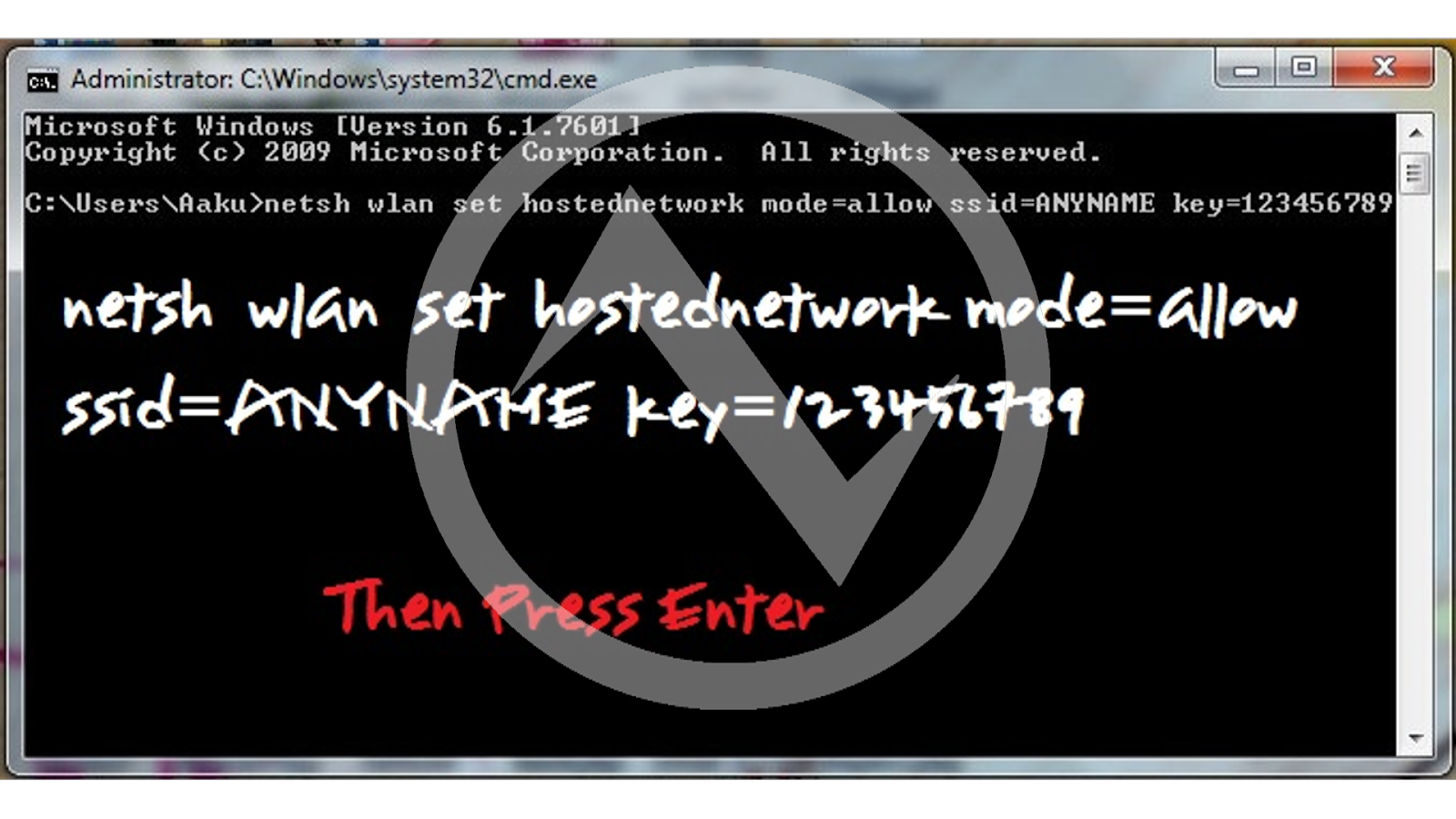
CMD(Command Prompt) Will Pop up, Now write this command.
"netsh wlan set hostednetwork mode=allow ssid=Anyname key=123456789"
Without Quotes. (Note:- The Character you are entering in the replacement of key should be greater than 4 Characters. And It will be your password.)
If You want to change the ssid and pass you can repeat the process again, it'll be changed. 

Step-10
If You get this Output in respond to you Input Code, you are on right track.

Step-11
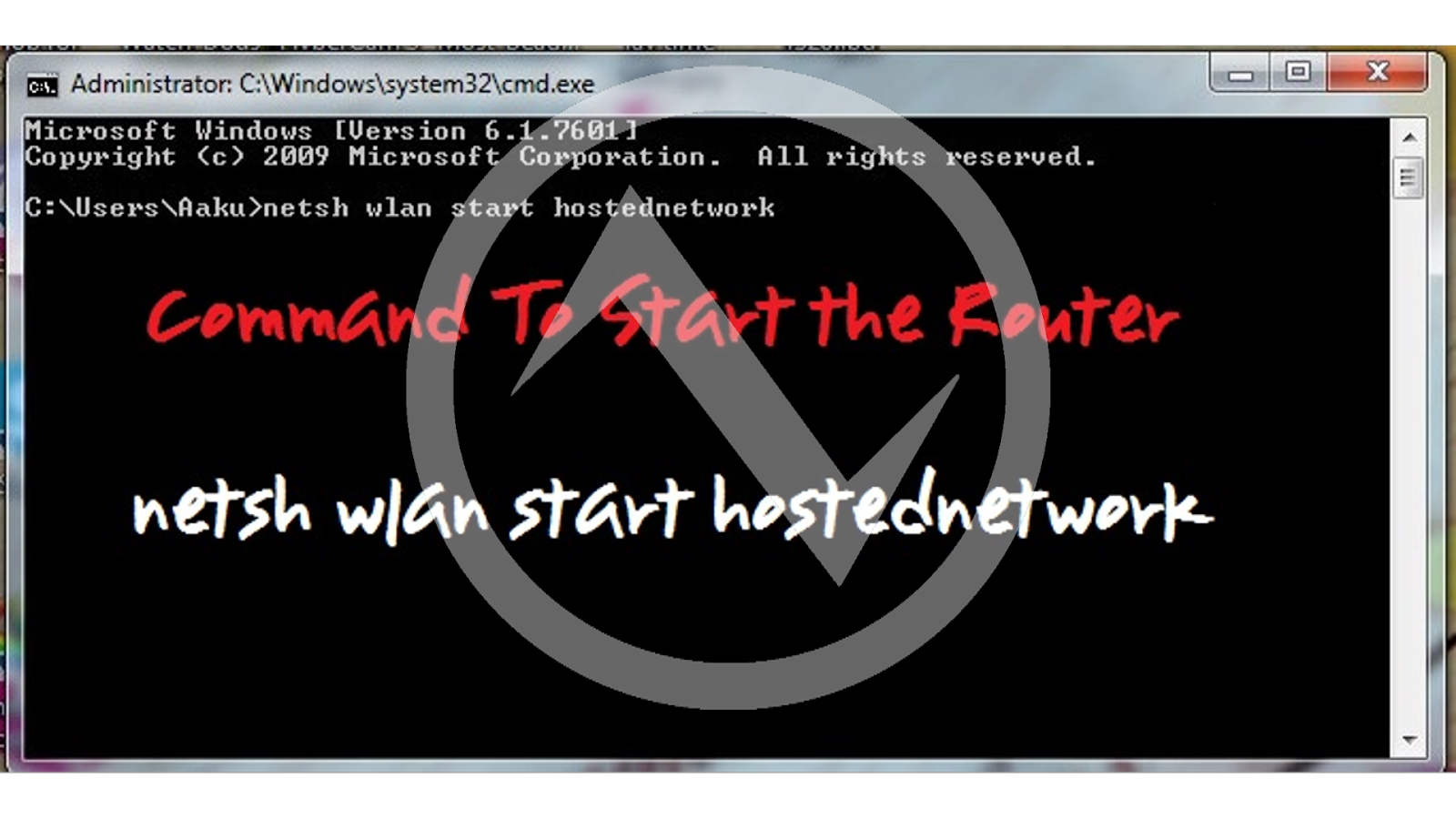
So You are set!! Now to start you Wifi Router Just type this Code
"netsh wlan start hostednetwork", Without Quotes.


Step-12
To Stop your Wifi Router Just type this command in Cmd,
"netsh wlan stop hostednetwork", Withouth Quotes.

If you feel It bit Complicated long process, lets minify it by adding some more to appear bit Professional, So continue from here.

Step-13
Go to Desktop Rightclick > New > Shortcut


Step-14
A Window will pop up like this!!
Type here the start Command,
 "netsh wlan start hostednetwork", Without Quotes.

Step-15
Click Next and then this window will appear,
Rename the "netsh.exe" with Anyname.exe (Just or Example Its shown anything.exe don't be confused.


Step-16
An Icon Will appear On your Desktop

Step-17
Now Just We'll change the Icon of the .exe file we just created,
Now Right Click on the .exe file and Goto Properties

Step-18
A window will pop up choose the Shortcut Tab > Change Icon

Step-19
Select the Icon you desire to keep from the list or you can use any External source too.

Step-20
Apply the Icon And You are done!!!


Step-21
In the same way create a Shortcut for Stopping the Wifi Router Network.... And Enjoy Your Wifi Sharing

If any Problem's please comment in the comment section. 

Framaroot (One Click Rooting) Android

Leave a Comment

Framaroot One Click Root Access in Android Operting Systems


Now you can root your android device without PC, just use framaroot. This app including several exploits named as the heroes of the book "The Lord of the Rings" Gandalf, Boromir, Pippin, Legolas, Sam, Frodo, Aragorn and Gimli. You can installSuperuser and su binary on phone or tablet from android version 2.x to 4.x. Unroot also very simple, just use this option in framaroot application.


How to Install Root:-


1. Download Framaroot from Our Site (Links Are Given Below).
2. Install the .apk file in the device.
3. Select rooting method eg. Bromir, Frodo, etc.
4. If Rooting Successfull you'll get SU (Super User) Installed in the Launcher
(And your android device is rooted Successfully).
5. If not Successfull try Other method or the other version of Framaroot.

How to Unroot:-

Open the version of Framaroot with which your phone has been rooted.
And then Click on Uninstall Root in the Framaroot  Application & thus your device is Unrooted.

DOWNLOADS

(These all are the latest updated versions of  Framaroot APKs try which one siuts your device the most)

Framaroot-1.4.1.apk - (2.14 MB, )
Framaroot-1.4.2.apk - (2.16 MB, )
Framaroot-1.4.3.apk - (2.02 MB, )
Framaroot-1.5.0.apk - (2.02 MB, )
Framaroot-1.5.1.apk - (2.02 MB, )
Framaroot-1.5.2.apk - (2.03 MB, )
Framaroot-1.5.3.apk - (2.03 MB, )
Framaroot-1.6.0.apk - (2.03 MB, )
Framaroot-1.6.1.apk - (908.2 KB, )
Framaroot-1.7.0.apk - (1.03 MB, )
Framaroot-1.7.1.apk - (1.03 MB, )
Framaroot-1.8.0.apk - (1.03 MB, )
Framaroot-1.8.1.apk - (1.03 MB, )
Framaroot-1.9.0.apk - (1.03 MB, )
Framaroot-1.9.1.apk - (1.03 MB, )
Framaroot-1.9.2.apk - (1.23 MB, )
Framaroot-1.9.3.apk - (1.25 MB, )


WhatsApp Desktop Version Released

Leave a Comment
WhatApp Desktop Version Released


Now all the Desktop Users Can be able to use WhatsApp Via their Updated Browsers. No need To use any emulators like (Genmotion, Vm-wares, etc.).Last month, it was leaked that Whatsapp was working on a web client and finally from today they are introducing it to the public. The feature is called "WhatsApp Web," which gives its users the ability to read and send messages directly from their web browsers.


HOW TO USE WHATSAPP ON PC/DESKTOP

  1. Interested WhatsApp users simply need to open Chrome and navigate to http://web.whatsapp.com
  2. A QR code will appear on the web page, which must be scanned using WhatsApp mobile application to activate the service.
  3. By scanning the QR code that appears, users will automatically have paired their mobile WhatsApp with the WhatsApp web client, as shown. 
WhatsApp Web requires that you install and run the latest Whatsapp version of the Android app on your phone. The feature currently works on Android, Windows Phone, and BlackBerry, but unfortunately, there's no web solution at this time for iOS users because of limitations of the platform.

The web version supports desktop notifications so users are notified of new WhatsApp messages even when not checking the web page.

Not only this, the Facebook-owned company is also working on a voice calling feature that WhatsApp will soon launch.

Currently, WhatsApp has 700 million users sending 30 billion messages per day, and is bigger than most of its competitors, including Facebook Messenger, Line and WeChat. This new feature will definitely increase its market.